MotionSync statement
Motion Sync
Motion Sync coordinates motion timing across two or more robot programs. Each robot follows its own targets and path, while Visual Components adjusts timing so participating robots finish corresponding motions together.
Motion Sync supports Joint, PTP, and LIN motions.
Set up Motion Sync
- On each participating motion controller, create a Controller Group with the same participating controllers.
- In each robot's program, add a Motion Sync statement where the robots should synchronize.
- Give matching statements the same non-empty Sync ID. Select that robot's corresponding Controller Group as its Sync Group.
- Put the motions to synchronize inside each statement's scope, in the same order in every program.
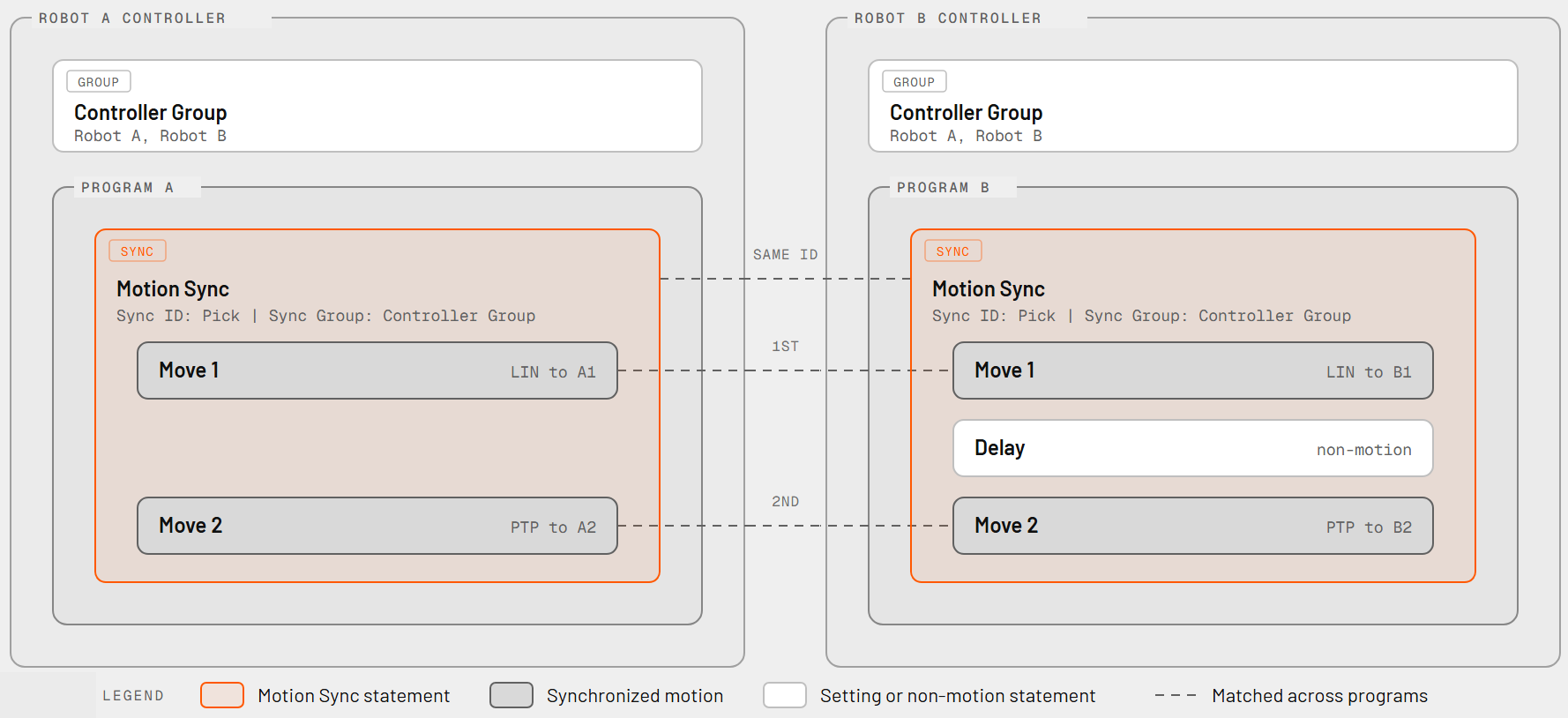
Targets and paths can differ. The shared Sync ID and Controller Groups identify the participating robots and motions.
What happens during simulation
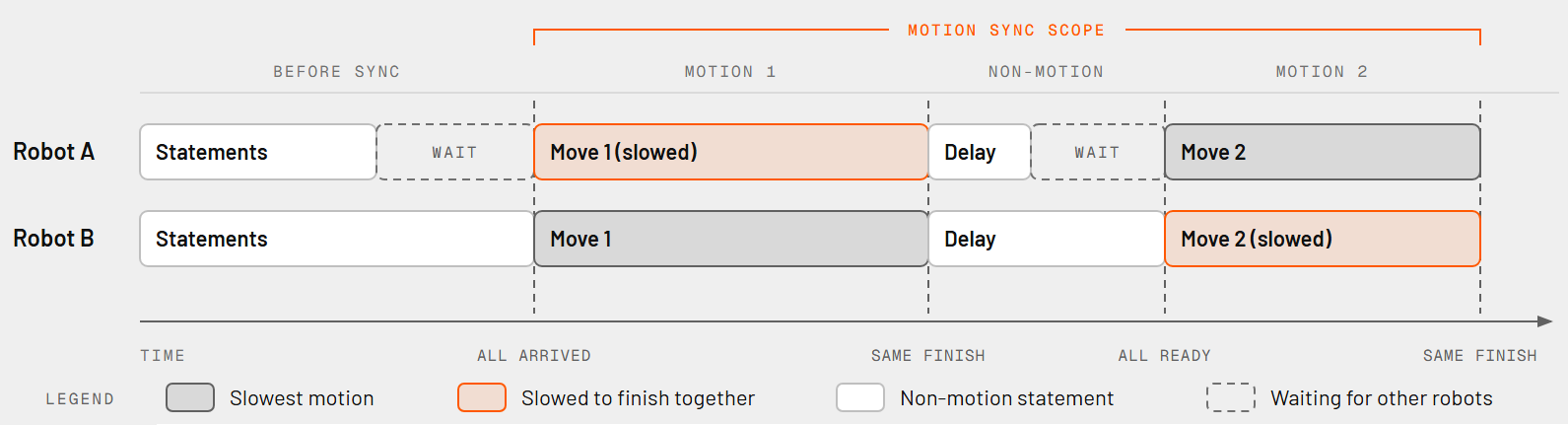
Robots wait at Motion Sync until all controllers in the Sync Group reach a statement with the same Sync ID. Before each motion, each robot waits until the others are ready for their corresponding motion. Visual Components then slows the faster motions to match the slowest one, so they finish together. Non-motion statements, such as delays, can take different amounts of time.
Program Sync coordinates program execution only. Motion Sync also adjusts motion timing.
Limitations and checks
- Every controller in a Sync Group must participate in the corresponding Motion Sync. A missing statement, different Sync ID, or controller that never reaches the statement can leave the other robots waiting indefinitely.
- Keep corresponding motions in the same order within each scope. Missing or extra motions can leave a participant waiting for a motion that another program never reaches.
- Motion Sync coordinates timing, not paths or positions. It does not ensure that robots maintain a shared relative position or avoid collisions.
- A linear motion that switches to or from a moving base is not supported within Motion Sync.
- When some participants use blended motions and others do not, Visual Components disables blending for the synchronized motion so all participants stop before continuing.
- When unscaled motion times differ, time scaling can cause a motion to overshoot its target. Check synchronized movements in simulation.